1. Dashboard
  2. Mitglieder
    1. Letzte Aktivitäten
    2. Benutzer online
    3. Team
    4. Mitgliedersuche
  3. Forenregeln
  4. Forum
    1. Unerledigte Themen
  • Anmelden
  • Registrieren
  • Suche
Alles
  • Alles
  • Artikel
  • Seiten
  • Forum
  • Erweiterte Suche
  1. AutoIt.de - Das deutschsprachige Forum.
  2. Mitglieder
  3. gmmg

Beiträge von gmmg

  • Outlook Signatur Verteilungs-Tool

    • gmmg
    • 8. Dezember 2025 um 12:55

    Hallo Sven,

    also den Updater habe ich mir so gedacht:

    1. es wird eine neue Signatur.html + txt in den Netzwerkpfad yxz gelegt und eine Versionsnummer angegeben.

    2. das lokal installierte OutlookSignatur Skript überprüft beim starten auf eine geänderte Versionsnummer, wenn die Versionsnummer vom Netzwerkpfad yxz höher ist, kopiere die neuen Dateien in den lokalen Pfad und überschreibe die alten.

    Das geht doch am besten mit einer Version.ini oder? Eventuell so?

    AutoIt
    $Signatur_ini_server = IniRead($ServerSharePath & "Signatur.ini", "INFO", "VERSION", "NotFound")
    
    $Signatur_ini_client = IniRead("C:\Program Files (x86)\erf24-Outlook-Signatur\Signatur.ini", "INFO", "VERSION", "NotFound")
    
    If $Signatur_ini_server > $Signatur_ini_client Then
    
    	;kopiere Files
    	
    Endif
    
    ;weiterer Programmablauf
    Alles anzeigen

    Aktuell läuft das Script beim Login und es besteht die Möglichkeit die Exe über eine Desktopverknüpfung anzuklicken. Zum Beispiel für HO User, die ja erst noch die VPN aufbauen müssen.

    Gruß Marcel
  • alte DB Scripte laufen plötzlich nicht mehr

    • gmmg
    • 8. Dezember 2025 um 11:36

    Falls es mal einer benötigt:

    AutoIt
    #include <MSSQL.au3>
    
    Local $sServer     = "YOUR_SERVER_NAME"
    Local $sDatabase   = "YOUR_DATABASE"
    Local $sUser       = "YOUR_USERNAME"
    Local $sPassword   = "YOUR_PASSWORD"
    
    ; Build connection string
    Local $sConnStr = _
            "Driver={ODBC Driver 17 for SQL Server};" & _
            "Server=" & $sServer & ";" & _
            "Database=" & $sDatabase & ";" & _
            "Uid=" & $sUser & ";" & _
            "Pwd=" & $sPassword & ";" & _
            "Encrypt=Yes;" & _
            "TrustServerCertificate=Yes;"
    
    ; Initialize SQL connection
    Local $hConn = _MSSQL_Connect($sServer, $sUser, $sPassword, $sDatabase, $sConnStr)
    
    If @error Then
        MsgBox(16, "SQL Error", "Failed to connect to SQL Server!" & @CRLF & "Error: " & @error)
        Exit
    EndIf
    
    MsgBox(64, "Success", "Connected successfully with encryption enabled!")
    Alles anzeigen
  • Outlook Signatur Verteilungs-Tool

    • gmmg
    • 8. Dezember 2025 um 10:50

    Hallo Zusammen,

    wir hatten bisher immer das Tool "OutlookSignatur.exe" (https://www.outlook-stuff.com/tipps-tricks/p…17-einheitliche) benutzt, da das aber schon Jahre einige Jahre nicht weiterentwickelt wurde habe ich mich eine Umsetzung in Autoit gemacht.

    Da unsere Clients im Azure AD liegen und die User im lokalen AD habe ich LDAP benutzt, um die Userparameter auszulesen.

    Hier das Script:

    AutoIt
    ; ===============================================
    ; Outlook HTML-Signatur mit direkter LDAP-Verbindung
    ; ===============================================
    #include <Array.au3>
    #include <MsgBoxConstants.au3>
    
    ; ===============================
    ; Konfiguration
    ; ===============================
    Local $sLDAPServer = "LDAP://ip Adresse oder DNS Name" ; Dein DC oder LDAP-Server
    Local $sBaseDN = "OU=User,OU=Benutzer,DC=xxx,DC=de"       ; Basis-DN der Domain
    Local $sUserName = @UserName ; sAMAccountName des Users
    
    ; ===============================
    ; Verbindung zum AD
    ; ===============================
    Local $sLDAPPath = $sLDAPServer & "/" & $sBaseDN
    Local $oConnection = ObjGet($sLDAPPath)
    
    If Not IsObj($oConnection) Then
        MsgBox(16, "Fehler", "LDAP Verbindung konnte nicht hergestellt werden!" & @CRLF & $sLDAPPath, 2)
        Exit
    EndIf
    
    ; ===============================
    ; ADSI User suchen
    ; ===============================
    ; ===============================
    Local $oCommand = ObjCreate("ADODB.Command")
    Local $oConn = ObjCreate("ADODB.Connection")
    $oConn.Provider = "ADsDSOObject"
    $oConn.Open("Active Directory Provider")
    
    $oCommand.ActiveConnection = $oConn
    
    ; === LDAP-Filter: Benutzerobjekt suchen ===
    
    $oCommand.CommandText = "<" & $sLDAPPath & ">;" & _
                            "(&(objectCategory=person)(objectClass=user)(sAMAccountName=" & $sUserName & "));" & _
                             "givenName, sn,mail,telephoneNumber,title,department,company, userPrincipalName;subtree"
    
    ; === Abfrage ausführen ===
    Local $oRS = $oCommand.Execute
    
    If $oRS.EOF Then
        MsgBox(48, "LDAP", "Benutzer " & $sUserName & " nicht gefunden!",2)
        Exit
    EndIf
    
    ; === Werte auslesen ===
    Local $sgivenName 	 = _LDAP_GetField($oRS, "givenName")
    Local $sSureName     = _LDAP_GetField($oRS, "sn")
    Local $sMail         = _LDAP_GetField($oRS, "mail")
    Local $sPhone        = _LDAP_GetField($oRS, "telephoneNumber")
    Local $sTitle        = _LDAP_GetField($oRS, "title")
    Local $sDept         = _LDAP_GetField($oRS, "department")
    Local $sCompany      = _LDAP_GetField($oRS, "company")
    Local $sUserPName    = _LDAP_GetField($oRS, "userPrincipalName")
    
    ; === Verbindung schließen ===
    $oRS.Close()
    $oConn.Close()
    
    ; === Signaturname und Logo ===
    ;Local $sSigName = $sCompany
    Local $sSigName = $sCompany & " ("& $sUserPName & ")"
    ;Local $sLogoSource = "C:\Firma\logo.png"
    ;Local $sBannerSource = "C:\Firma\banner.png"
    Local $sSigPath = @AppDataDir & "\Microsoft\Signatures\"
    
    ;ConsoleWrite(@AppDataDir & "\Microsoft\Signatures")
    
    ; === HTML-Signatur generieren ===
    
    ; --- HTML-Datei einlesen ---
    Local $sFile_html = @ScriptDir & "\Signatur-Files\Signatur.html"
    Local $sHTML = FileRead($sFile_html)
    
    If @error Then
        MsgBox(16, "Fehler", "Konnte HTML Datei nicht lesen!")
        Exit
    EndIf
    
    ; --- Platzhalter ersetzen ---
    $sHTML = StringReplace($sHTML, "{{sgivenName}}", $sgivenName)
    $sHTML = StringReplace($sHTML, "{{sSureName}}", $sSureName)
    $sHTML = StringReplace($sHTML, "{{sTitle}}", $sTitle)
    $sHTML = StringReplace($sHTML, "{{sMail}}", $sMail)
    $sHTML = StringReplace($sHTML, "{{sPhone}}", $sPhone)
    
    ;ConsoleWrite($sHTML)
    
    ; === Dateien schreiben für txt und rtf ===
    ; --- TXT-Datei einlesen ---
    Local $sFile_txt = @ScriptDir & "\Signatur-Files\Signatur.txt"
    Local $sTXT = FileRead($sFile_txt)
    
    If @error Then
        MsgBox(16, "Fehler", "Konnte TXT Datei nicht lesen!")
        Exit
    EndIf
    
    ; --- Platzhalter ersetzen ---
    $sTXT = StringReplace($sTXT, "{{sgivenName}}", $sgivenName)
    $sTXT = StringReplace($sTXT, "{{sSureName}}", $sSureName)
    $sTXT = StringReplace($sTXT, "{{sTitle}}", $sTitle)
    $sTXT = StringReplace($sTXT, "{{sMail}}", $sMail)
    $sTXT = StringReplace($sTXT, "{{sPhone}}", $sPhone)
    
    ;delete old signatures
    If FileExists ($sSigPath & $sCompany & ".htm") Then FileDelete ($sSigPath & $sCompany & ".htm")
    If FileExists ($sSigPath & $sCompany & ".rtf") Then FileDelete ($sSigPath & $sCompany & ".rtf")
    If FileExists ($sSigPath & $sCompany & ".txt") Then FileDelete ($sSigPath & $sCompany & ".txt")
    
    ;create new signatures
    If FileExists ($sSigPath & $sSigName & ".htm") Then FileDelete ($sSigPath & $sSigName & ".htm")
    If FileExists ($sSigPath & $sSigName & ".rtf") Then FileDelete ($sSigPath & $sSigName & ".rtf")
    If FileExists ($sSigPath & $sSigName & ".txt") Then FileDelete ($sSigPath & $sSigName & ".txt")
    
    Sleep(1000)
    
    FileWrite($sSigPath & $sSigName & ".htm", $sHTML)
    FileWrite($sSigPath & $sSigName & ".txt", $sTXT)
    FileWrite($sSigPath & $sSigName & ".rtf", $sTXT)
    
    ; === Outlook-Signatur als Standard setzen ===
    ;_SetDefaultOutlookSignature($sSigName)
    
    MsgBox($MB_ICONINFORMATION, "Signatur erstellt", "Signatur für '" & $sgivenName & " " & $sSureName & "' wurde erfolgreich erstellt!",1)
    
    ; ====================================================
    ; Hilfsfunktionen
    ; ====================================================
    
    Func _LDAP_GetField($oRS, $sField)
        Local $vValue = ""
        If Not IsObj($oRS.Fields($sField)) Then Return ""
        If Not IsObj($oRS.Fields($sField).Value) Then
            $vValue = $oRS.Fields($sField).Value
        EndIf
        Return $vValue
    EndFunc
    
    Func _SetDefaultOutlookSignature($sName)
        Local $sRegPath = "HKCU\Software\Microsoft\Office\" & _GetOutlookVersion() & "\Common\MailSettings"
        RegWrite($sRegPath, "NewSignature", "REG_SZ", $sName)
        RegWrite($sRegPath, "ReplySignature", "REG_SZ", $sName)
    EndFunc
    
    Func _GetOutlookVersion()
        Local $aVersions[4] = ["19.0", "16.0", "15.0", "14.0"]
        For $v In $aVersions
            If RegRead("HKCU\Software\Microsoft\Office\" & $v & "\Outlook", "Bitness") <> "" Then Return $v
        Next
        Return "16.0"
    EndFunc
    Alles anzeigen

    Bei Outlook gibt es nun 2 Signatur Bereiche. Einmal die Signatur auf dem lokalen Gerät und die zweite für das EmailKonto. Welche dann auch Online Syncronisiert wird.

    Die Signatur für das Emailkonto muss dann im Format Signaturname + (userPrincipalName) sein. So im Quelltext: $sSigName = $sCompany & " ("& $sUserPName & ")"

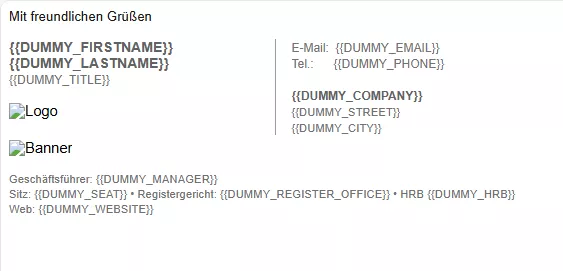
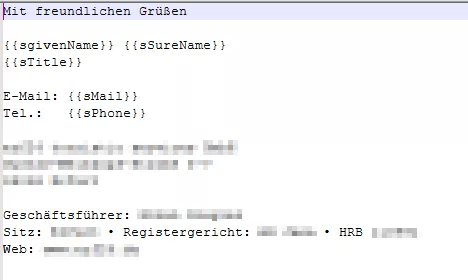
    Das Tool liest eine HTML und ein Textfile ein und ersetzt dann die entsprechenden Platzhalter mit den per LDAP ausgelesen Werten und spiecher es als Signatur im Fortmat HTML, TXT und RTF ab.

    Nun möchte ich noch eine Updater bauen, der beim starten prüft (Freigegebener Ordner auf dem Filseserver ) ob es eine neue HTML und TXT Datei gibt, wenn die Signatur mal angepasst wurde.

    Beispiel TXT File mit den Platzhaltern.

    Hat da jemand eine Idee?

    Gruß Marcel

    Dateien

    signatur-dummy.html.txt 2,29 kB – 111 Downloads
  • Arbeiten mit AutoIt (Windows Defender, UAC ...)

    • gmmg
    • 28. November 2025 um 10:22

    selbstsigniertes Zertifikat erstellen

    Schritt 1: PowerShell öffnen

    Klicke auf das Startmenü, tippe „PowerShell“ ein, mache einen Rechtsklick und wähle „Als Administrator ausführen“.

    Schritt 2: Selbstsigniertes Zertifikat erstellen

    Gib in das PowerShell-Fenster folgenden Befehl ein:

    New-SelfSignedCertificate -DnsName "http://www.domain.de" -Type CodeSigning -Subject "CN=AutoIt-domain.de" -CertStoreLocation Cert:\CurrentUser\My -NotAfter (Get-Date).AddYears(5)

    Dieser Befehl erstellt ein Zertifikat mit dem Namen "MeinAutoItZertifikat", das 5 Jahre gültig ist.

    Schritt 3: Zertifikat exportieren

    Um dein Zertifikat zu signieren, musst du es exportieren, inklusive privatem Schlüssel:

    $cert = Get-ChildItem -Path Cert:\CurrentUser\My | Where-Object { $_.Subject -eq "CN=AutoIt-erf24.de" }
    $pwd = ConvertTo-SecureString -String "passwort" -Force -AsPlainText
    Export-PfxCertificate -Cert $cert -FilePath "d:\AutoIt-domain.de.pfx" -Password $pwd

    Ersetze
    "MeinSicheresPasswort"
    durch ein sicheres Passwort deiner Wahl.
    Das Zertifikat wird auf deinem Desktop gespeichert.

    Schritt 4: Zertifikat in Windows installieren (optional)

    Wenn du möchtest, kannst du das Zertifikat auch in den Zertifikatsspeicher importieren, um es als vertrauenswürdig zu markieren:

    Doppelklicke auf die
    .pfx
    -Datei auf deinem Desktop.
    Folge den Anweisungen, um das Zertifikat zu installieren.
    Wähle „Alle Zertifikate in folgendem Speicher anzeigen“ und setze es auf „Vertrauenswürdige Stammzertifizierungsstellen“.

    Schritt 5: Skript signieren

    Mit signtool.exe (Teil des Windows SDK) kannst du dein Skript jetzt signieren:

    signtool sign /f "Pfad\zu\Deinem\Zertifikat.pfx" /p "DeinPasswort" /tr http://timestamp.digicert.com /td sha256 /fd sha256 "Pfad\zu\Deinem\Skript.exe"

    Ersetze die Pfade und Passwörter entsprechend.

    In AutoIT dann folgen Code in die Zeile 1 (Pfad zum signtool muss ggf. angepasst werden.
    #AutoIt3Wrapper_Run_After=""%ProgramFiles(x86)%\Windows Kits\10\bin\10.0.26100.0\x86\signtool.exe" sign /f "D:\autoitde-doamain.pfx" /p "kennwort" /tr http://timestamp.digicert.com/scripts/timestamp.dll /td SHA256 /fd SHA256 /a "%out%""

    Gruß Marcel

  • Arbeiten mit AutoIt (Windows Defender, UAC ...)

    • gmmg
    • 26. November 2025 um 09:43

    ich signiere die exe Files immer beim Compilieren mit einem selbstsignierten Zertifikat und lasse diese danach immer nochmal von Vierenscanner untersuchen.

    Da gab es bisher noch nie wieder Probleme.

    Gruß Marcel

  • Hallo!

    • gmmg
    • 13. November 2025 um 08:43

    Auch von mir ein herzliches Willkommen :)

  • AutoIt 3.3.18.0 - bereits getestet?

    • gmmg
    • 17. September 2025 um 08:30

    Habe es auch installiert und bisher gab es keine Auffälligkeiten.

    Gruß Marcel

  • Fronius Webseite auslesen

    • gmmg
    • 12. September 2025 um 09:21

    Tweaky, dann hättest du sicherlich die Möglichkeit die Daten zyklich in eine DB zu schreiben. Und daraus dann einen Report zu erstellen.

  • Email versenden

    • gmmg
    • 15. August 2025 um 08:46
    Zitat von golum

    gmmg

    Das Script unterscheidet sich nicht wirklich von allen anderen. Mit welchem Provider funktioniert das denn? Mit gmx-freemail jedenfalls leider nicht.

    VG

    golum, das Script funktioniert eigentlich mit allen Providern. Welche TLS Version hast du auf deinem Win7 aktiv?

    Hast du mal dein Script auf Windows 10 oder 11 getestet?

  • Email versenden

    • gmmg
    • 14. August 2025 um 15:12

    ich nutze immer folgendens Script.

    AutoIt
    #include <File.au3>
    #include <String.au3>
    #Include <Array.au3>
    #include <Date.au3>
    #include <WindowsConstants.au3>
    
    Dim $oMyRet, $oMyError, $to, $cc, $bcc, $subject, $body, $attachment, $aRecords
    
    
    Local $ADMINUSER = "xxxxx"  
    Local $ADMINPASS = "xxxxx"
    
    
    $from = "mail adresse"
    $to = "mail adresse"
    $cc = ""
    $bcc = ""
    $subject = "betreff"
    $body = "body"
    $attachment = ""
    
    Sendmail()
    
    
    sleep (2000)
    
    Func Sendmail()
    
    	Global $oMyError = ObjEvent("AutoIt.Error", "MyErrFunc")
    	;##################################
    	; Variables
    	;##################################
    	;$s_SmtpServer = "10.82.0.41" "mail1-erf01.fti.int"	; address for the smtp-server to use - REQUIRED
    	$s_SmtpServer = "server"				; address for the smtp-server to use - REQUIRED
    	$s_FromName = $from 						; name from who the email was sent
    	$s_FromAddress = $from 						; address from where the mail should come
    	$s_ToAddress = $to							; destination address of the email - REQUIRED
    	$s_Subject = $subject						; subject from the email - can be anything you want it to be
    	$as_Body = $body						; the messagebody from the mail - can be left blank but then you get a blank mail
    	$s_AttachFiles = $attachment				; the file you want to attach- leave blank if not needed
    	$s_CcAddress = $cc 							; address for cc - leave blank if not needed
    	$s_BccAddress = $bcc 						; address for bcc - leave blank if not needed
        $s_Username = $ADMINUSER                  	; username for the account used from where the mail gets sent  - Optional (Needed for eg GMail)
    	$s_Password = $ADMINPASS                  	; password for the account used from where the mail gets sent  - Optional (Needed for eg GMail)
    	;$IPPort = 25 								; port used for sending the mail
    	$IPPort = 465 								; port used for sending the mail
    	$ssl = 1 									; enables/disables secure socket layer sending - put to 1 if using httpS
    	;$IPPort=465                            	; GMAIL port used for sending the mail
    	;~ $ssl=1                                 	; GMAILenables/disables secure socket layer sending - put to 1 if using httpS
    
    	;##################################
    	; Script
    	;##################################
    	Global $oMyRet[2]
    	;MsgBox(0,"", $s_SmtpServer& $s_FromName& $s_FromAddress& $s_ToAddress& $s_Subject& $as_Body& $s_AttachFiles& $s_CcAddress& $s_BccAddress& $s_Username& $s_Password& $IPPort& $ssl)
    	$rc = _INetSmtpMailCom($s_SmtpServer, $s_FromName, $s_FromAddress, $s_ToAddress, $s_Subject, $as_Body, $s_AttachFiles, $s_CcAddress, $s_BccAddress, $s_Username, $s_Password, $IPPort, $ssl)
    	If @error Then
    		MsgBox(0, "Error sending message", "Error code:" & @error & "  Description:" & $rc,1)
    	EndIf
    
    EndFunc   ;==>Sendmail
    
    
    Func _INetSmtpMailCom($s_SmtpServer, $s_FromName, $s_FromAddress, $s_ToAddress, $s_Subject = "", $as_Body = "", $s_AttachFiles = "", $s_CcAddress = "", $s_BccAddress = "", $s_Username = "", $s_Password = "", $IPPort = 25, $ssl = 0)
    	$objEmail = ObjCreate("CDO.Message")
    	$objEmail.From = '"' & $s_FromName & '" <' & $s_FromAddress & '>'
    	$objEmail.To = $s_ToAddress
    	Local $i_Error = 0
    	Local $i_Error_desciption = ""
    	If $s_CcAddress <> "" Then $objEmail.Cc = $s_CcAddress
    	If $s_BccAddress <> "" Then $objEmail.Bcc = $s_BccAddress
    	$objEmail.Subject = $s_Subject
    	If StringInStr($as_Body, "<") And StringInStr($as_Body, ">") Then
    		$objEmail.HTMLBody = $as_Body
    	Else
    		$objEmail.Textbody = $as_Body & @CRLF
    	EndIf
    	If $s_AttachFiles <> "" Then
    		Local $S_Files2Attach = StringSplit($s_AttachFiles, ";")
    		For $x = 1 To $S_Files2Attach[0]
    			$S_Files2Attach[$x] = _PathFull($S_Files2Attach[$x])
    			If FileExists($S_Files2Attach[$x]) Then
    				$objEmail.AddAttachment($S_Files2Attach[$x])
    			Else
    				$i_Error_desciption = $i_Error_desciption & @LF & 'File not found to attach: ' & $S_Files2Attach[$x]
    				SetError(1)
    				Return 0
    			EndIf
    		Next
    	EndIf
    	$objEmail.Configuration.Fields.Item("http://schemas.microsoft.com/cdo/configuration/sendusing") = 2
    	$objEmail.Configuration.Fields.Item("http://schemas.microsoft.com/cdo/configuration/smtpserver") = $s_SmtpServer
    	$objEmail.Configuration.Fields.Item("http://schemas.microsoft.com/cdo/configuration/smtpserverport") = $IPPort
    	;Authenticated SMTP
    	If $s_Username <> "" Then
    		$objEmail.Configuration.Fields.Item("http://schemas.microsoft.com/cdo/configuration/smtpauthenticate") = 1
    		$objEmail.Configuration.Fields.Item("http://schemas.microsoft.com/cdo/configuration/sendusername") = $s_Username
    		$objEmail.Configuration.Fields.Item("http://schemas.microsoft.com/cdo/configuration/sendpassword") = $s_Password
    	EndIf
    	If $ssl Then
    		$objEmail.Configuration.Fields.Item("http://schemas.microsoft.com/cdo/configuration/smtpusessl") = True
    	EndIf
    	;Update settings
    	$objEmail.Configuration.Fields.Update
    	; Sent the Message
    	$objEmail.Send
    	If @error Then
    		SetError(2)
    		Return $oMyRet[1]
    	EndIf
    EndFunc   ;==>_INetSmtpMailCom
    
    Func MyErrFunc()
    	$HexNumber = Hex($oMyError.number, 8)
    	$oMyRet[0] = $HexNumber
    	$oMyRet[1] = StringStripWS($oMyError.description, 3)
    	ConsoleWrite("### COM Error !  Number: " & $HexNumber & "   ScriptLine: " & $oMyError.scriptline & "   Description:" & $oMyRet[1] & @LF)
    	SetError(1); something to check for when this function returns
    	Return
    EndFunc   ;==>MyErrFunc
    
    Func stringencrypt($fencrypt, $sdata, $spassword)
    	_crypt_startup()
    	Local $sreturn = ""
    	If $fencrypt Then
    		$sreturn = _crypt_encryptdata($sdata, $spassword, $calg_aes_256)
    	Else
    		$sreturn = BinaryToString(_crypt_decryptdata($sdata, $spassword, $calg_aes_256))
    	EndIf
    	_crypt_shutdown()
    	Return $sreturn
    EndFunc
    Alles anzeigen

    Gruß gmmg

  • Arduino - Problem

    • gmmg
    • 21. Juni 2025 um 20:46

    Hi Bugfix,

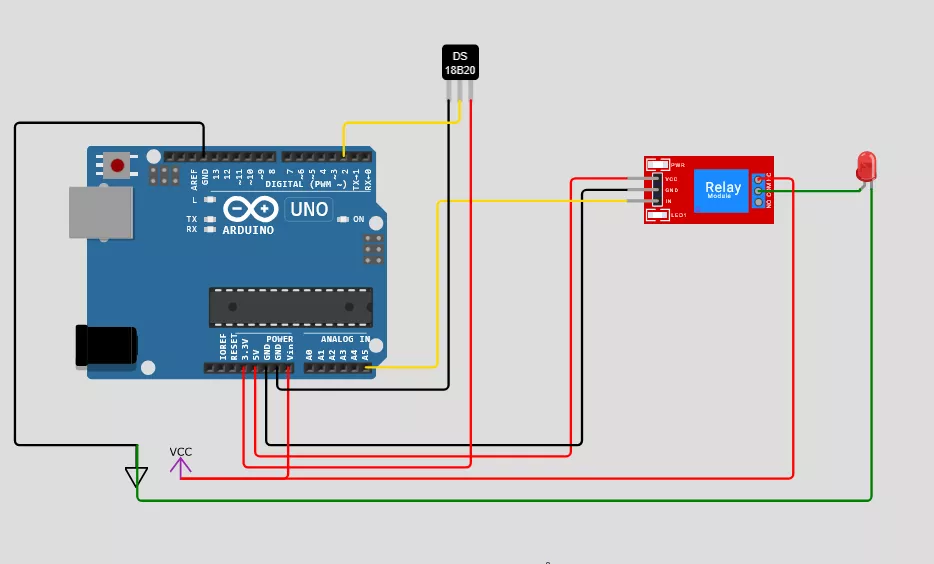
    ich schalte einen Lüfter per Relais über Temperatursensor "DS18B20", welcher an der Fritzbox hängt und zu deren Kühlung dient. Eventuell kannst du da was ableiten. LED nur zum veranschaulichen, das dass Relais schaltet.

    Lüfter - Wokwi ESP32, STM32, Arduino Simulator
    Run IoT and embedded projects in your browser: ESP32, STM32, Arduino, Pi Pico, and more. No installation required!
    wokwi.com


    C
    #include <OneWire.h>
    #include <DallasTemperature.h>
    
    const int TEMP_HOT = 30; // upper threshold of temperature, change to your desire value
    const int TEMP_COLD = 25; // lower threshold of temperature, change to your desire value
    
    const int SENSOR_PIN    = 2; // Arduino pin connected to DS18B20 sensor's DQ pin
    const int RELAY_FAN_PIN = A5; // Arduino pin connected to relay which connected to fan
    
    OneWire oneWire(SENSOR_PIN);         // setup a oneWire instance
    DallasTemperature sensors(&oneWire); // pass oneWire to DallasTemperature library
    
    float temperature;    // temperature in Celsius
    
    void setup()
    {
      Serial.begin(9600); // initialize serial
      sensors.begin();    // initialize the sensor
      pinMode(RELAY_FAN_PIN, OUTPUT); // initialize digital pin as an output
    
      Serial.println("The fan is turned off");
      digitalWrite(RELAY_FAN_PIN, HIGH); // turn off
    }
    
    void loop()
    {
      sensors.requestTemperatures();             // send the command to get temperatures
      temperature = sensors.getTempCByIndex(0);  // read temperature in Celsius


      Serial.println(temperature);
    
      if(temperature > TEMP_HOT){
        Serial.println("The fan is turned on");
        digitalWrite(RELAY_FAN_PIN, LOW); // turn on
      } else if(temperature < TEMP_COLD){
        Serial.println("The fan is turned off");
        digitalWrite(RELAY_FAN_PIN, HIGH); // turn OFF
      }
      delay(500);
    }
    Alles anzeigen

    Gruß Marcel

  • AzureAD ObjectID to SID Converter

    • gmmg
    • 19. Juni 2025 um 08:09

    Prima :)

  • AzureAD ObjectID to SID Converter

    • gmmg
    • 18. Juni 2025 um 14:44

    Hallo Sven,

    wenn möglich sollte mal das Konvertieren zu SID mit einer eigenen AzureAD ObjectID geprüfen werden.

    Als Referenz kann man am Client PC auch per CMD "whoami /all" ausführen, um seine SID zu sehen.

    Viele Grüße zurück :)

    Marcel

  • AzureAD ObjectID to SID Converter

    • gmmg
    • 18. Juni 2025 um 13:19

    Hallo Zusammen,

    wir hatten das Problem, dass wir die AzureAD ObjectID's in die SID wandeln mussten.

    Das hatten wir öfter mal mit der Webseite "https://erikengberg.com/azure-ad-object-id-to-sid/" erledigt, auf dieser ist der Service aber aktuell down. Nach kurzer Rechere wird auf ein Powershell Script verwiesen, welches auch gut funktioniert. Da wir aber für alle User die SID aus der ObjectID generieren müssen, wollten wir das mit Autoit umsetzen. Da ich hier nichts passendes in Autoit Foren gefunden habe, hab ich mal versucht das Powershell Script per Chatgpt convertieren zu lassen.

    Nach ca. 20 Versuchen und den richtigen Hinweisen im ChatGTP Fenster hat es geklappt. Das folgende Script liefert nun die korrekte SID.

    Eventuell hat noch jemand die Möglichkeit das Ergebnis auf korrektheit mit seinen Werten zu prüfen.

    AutoIt
    ; Beispiel
    Local $ObjectID = "95a75231-0a1e-4319-8496-7f3b9629d8ed"
    Local $sid = ConvertAzureAdObjectIdToSid($ObjectID)
    
    ConsoleWrite("SID: " & $sid & @CRLF)
    ;Ergebnis = S-1-12-1-2510770737-1125714462-998217348-3990366614
    
    
    Func ConvertAzureAdObjectIdToSid($ObjectID)
        $ObjectID = StringLower(StringReplace($ObjectID, "-", ""))
        If StringLen($ObjectID) <> 32 Then Return SetError(1, 0, "Ungültige GUID")
    
        Local $b[16]
    
        ; Data1 (4 bytes LE)
        $b[0] = Dec(StringMid($ObjectID, 7, 2))
        $b[1] = Dec(StringMid($ObjectID, 5, 2))
        $b[2] = Dec(StringMid($ObjectID, 3, 2))
        $b[3] = Dec(StringMid($ObjectID, 1, 2))
    
        ; Data2 (2 bytes LE)
        $b[4] = Dec(StringMid($ObjectID, 11, 2))
        $b[5] = Dec(StringMid($ObjectID, 9, 2))
    
        ; Data3 (2 bytes LE)
        $b[6] = Dec(StringMid($ObjectID, 15, 2))
        $b[7] = Dec(StringMid($ObjectID, 13, 2))
    
        ; Data4 (8 bytes as-is)
        Local $offset = 17
        For $i = 8 To 15
            $b[$i] = Dec(StringMid($ObjectID, $offset, 2))
            $offset += 2
        Next
    
        ; Convert into UInt32
        Local $sidPart[4]
        For $i = 0 To 3
            Local $j = $i * 4
            $sidPart[$i] = UInt32FromBytes($b[$j], $b[$j + 1], $b[$j + 2], $b[$j + 3])
        Next
    
        Return "S-1-12-1-" & $sidPart[0] & "-" & $sidPart[1] & "-" & $sidPart[2] & "-" & $sidPart[3]
    EndFunc
    
    Func UInt32FromBytes($b0, $b1, $b2, $b3)
        ; UInt32 = b0 + (b1 << 8) + (b2 << 16) + (b3 << 24)
        Local $u = _
            BitAND($b0, 0xFF) + _
            BitShift(BitAND($b1, 0xFF), -8) + _
            BitShift(BitAND($b2, 0xFF), -16) + _
            BitShift(BitAND($b3, 0xFF), -24)
    
        ; Handling negatives due to signed int overflow
        If $u < 0 Then $u += 0x100000000
        Return $u
    EndFunc
    Alles anzeigen

    Viel Spaß damit.

    Gruß gmmg

  • Switch GUI

    • gmmg
    • 13. Juni 2025 um 08:06

    schau mal hier: https://www.autoitscript.com/wiki/Managing_Multiple_GUIs

  • Firefox 136.0.1 mit Access VBA automatisieren

    • gmmg
    • 4. Juni 2025 um 07:46

    Hallo Joachim,

    danke für die Rückmeldung. Euch auch eine schöne Woche.

    Gruß Marcel

  • Firefox 136.0.1 mit Access VBA automatisieren

    • gmmg
    • 2. Juni 2025 um 13:56

    Hallo Sven,

    danke für die Rückmeldung.

    Dir auch eine schöne Woche und grüße zurück :)

    Marcel

  • Firefox 136.0.1 mit Access VBA automatisieren

    • gmmg
    • 2. Juni 2025 um 11:48

    Hallo Joachim, Hallo Sven :)

    ich habe die vorherigen Posts nur überflogen. Eine Access.mdb lässt sich ja Problemlos mit Autoit bedienen (lesen/schreiben) und die Werte dann per Webdriver an den Browser übergeben.

    Ich nutze hier die Access_UDF.au3. falls da bedarf besteht kann ich die noch teilen, diese ist aber auch im engl forum vorhanden.

    Gruß Marcel

  • Formeln in eine CSV-Datei schreiben

    • gmmg
    • 20. Mai 2025 um 07:55

    Hi entsel,

    ist deine Ausgangsdatei eine CSV? Du kannst ja auch gleich in eine Excel Datei schreiben, dafür gibt es in Autoit die Funktionen.

    Hier mal ein Beispiel aus dem engl Forum: https://www.autoitscript.com/forum/topic/19…with-autoit-v3/

    Für LibreOffice gibt es unter anderem die UDF: https://github.com/mlipok/Au3LibreOffice

    Gruß Marcel

  • MsgBox ohne Beep möglich

    • gmmg
    • 30. April 2025 um 10:49

    Messagebox mit Beep liegt ja bestimmt am Soundschema bei Windows. Bei uns ist das ausgestellt.

    Soundschema "keine Sounds"

    Silent MsgBox()?
    Hi all,How might I go about firing off a MsgBox() that doesn't play a sound or beep the PC speaker?I tried doing this:msgBox(80, "", "Does not ding") msgBox(0,…
    www.autoitscript.com

    Messagebox mit Timer

    AutoIt
    #include <Timers.au3>
    
    $iSec = 8
    ;----------------------------------------------
    _Timer_SetTimer("msg", 1000, '_ShowSeconds')
    MsgBox(0, 'Info', "Meine MsgBox Text!", $iSec)
    _Timer_KillAllTimers("msg")
    ;----------------------------------------------
    
    Func _ShowSeconds($hWnd, $Msg, $iIDTimer, $dwTime)
        #forceref $hWnd, $Msg, $iIDTimer, $dwTime
        $iSec -= 1
        ControlSetText('Info', '', '[CLASS:Button; INSTANCE:1]', 'Ok  ' & $iSec & 's')
    EndFunc
    Alles anzeigen

Spenden

Jeder Euro hilft uns, Euch zu helfen.

Download

AutoIt Tutorial
AutoIt Buch
Onlinehilfe
AutoIt Entwickler
  1. Datenschutzerklärung
  2. Impressum
  3. Shoutbox-Archiv
Community-Software: WoltLab Suite™